

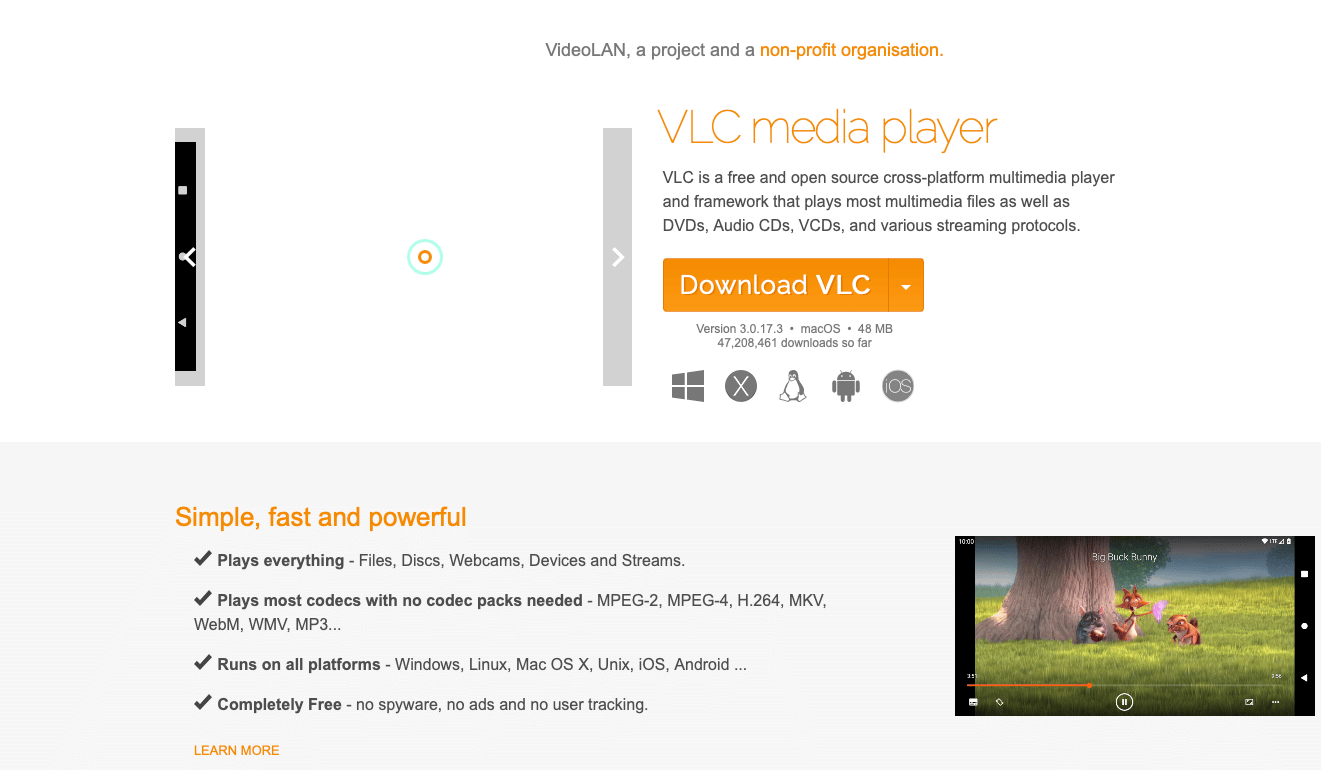
VLC is a free media player for Windows, Mac and Linux. It can play your rentIPTV channels from your M3U playlist link. It’s a quick option for a computer, although it has no TV guide. For the full experience with a guide, movies and series, use the web player or IPTV Smarters.
The login details in this guide (username demo4821, password pass7395) are examples. Use the ones from your own welcome email.
Step 1: Install VLC
- Go to videolan.org and select Download VLC. The site picks the right version for your computer.
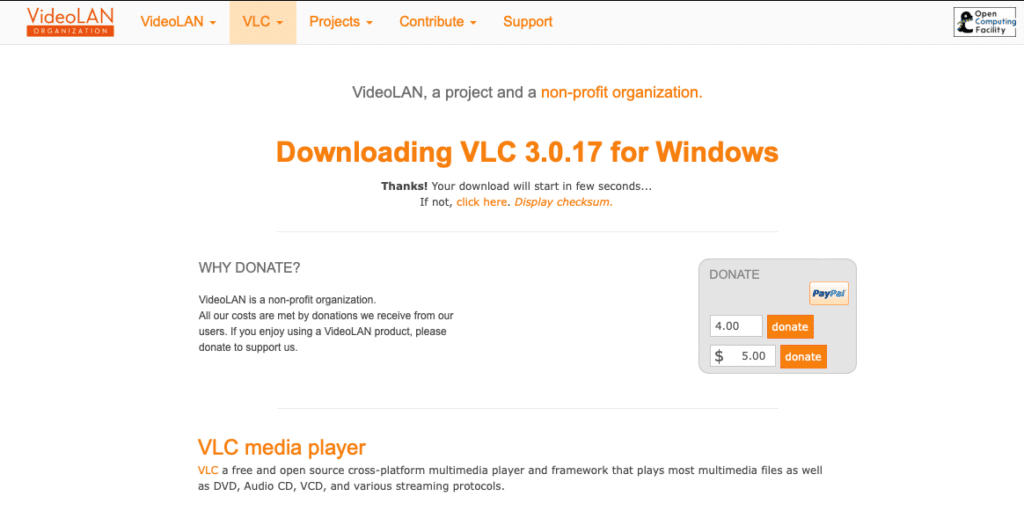
- Open the downloaded file and follow the installer.
- Open VLC media player.
Step 2: Open your playlist
- In VLC, select Media > Open Network Stream (on a Mac: File > Open Network).
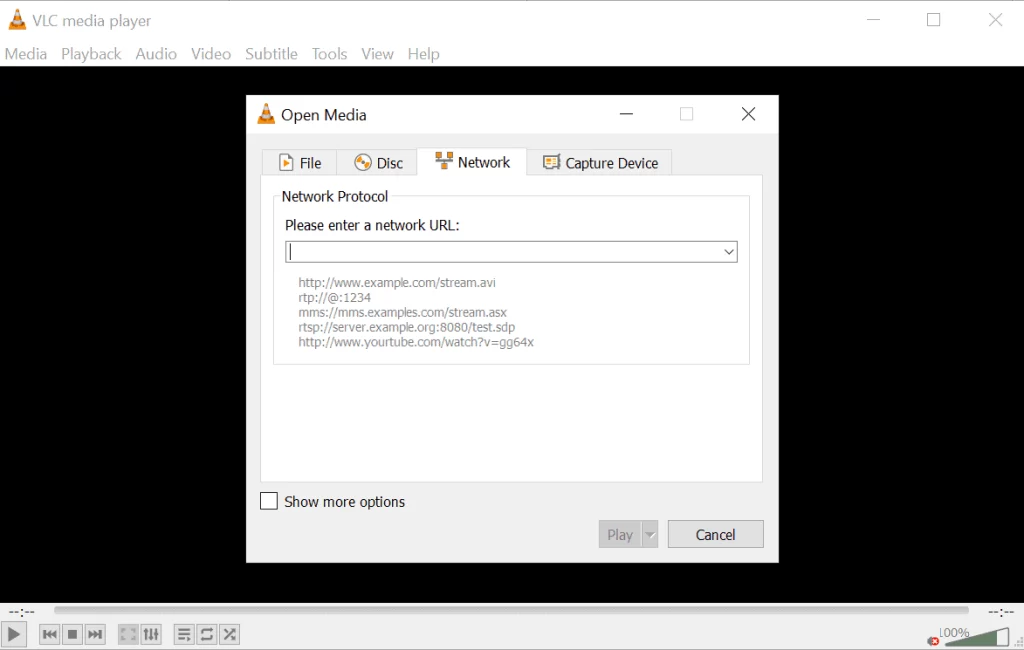
- Paste your categorized M3U link into the network URL box:
http://server1.rentiptv.com:80/get.php?username=demo4821&password=pass7395&type=m3u_plus&output=ts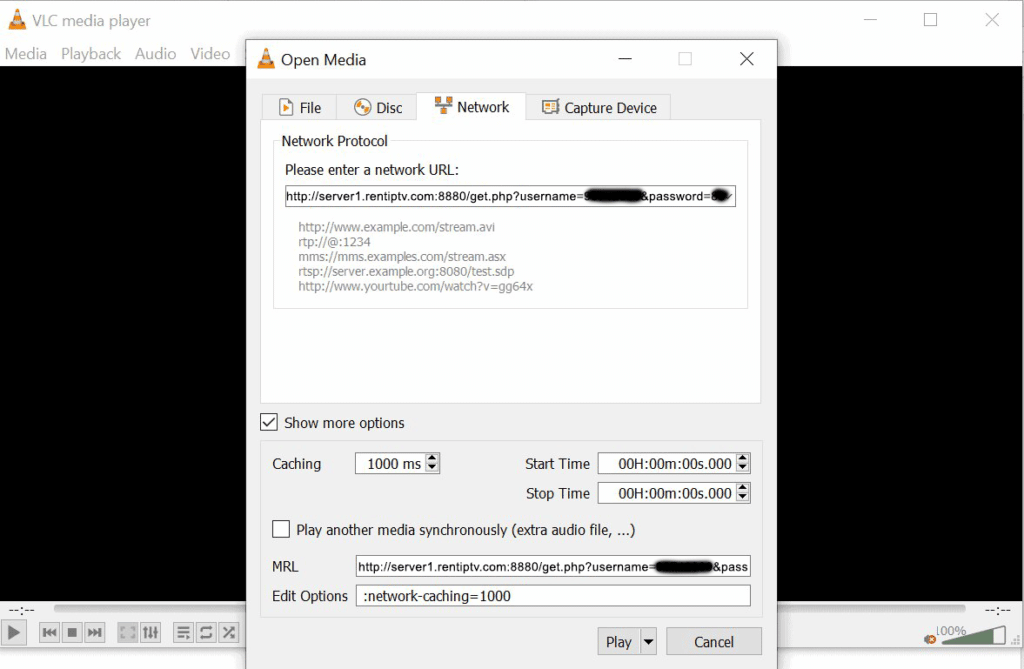
- Select Play. VLC loads the playlist and starts the first channel.
Step 3: Choose a channel
Open the playlist with View > Playlist (or press Ctrl+L on Windows, Cmd+Shift+L on Mac). Double-click any channel to play it. Use the search box at the top of the playlist to find a channel by name.
Save the playlist for next time
With the playlist open, choose Media > Save Playlist to File and save it as an .m3u file. Next time, just open that file in VLC. If channels change, open the link again to get the latest list.
If channels buffer
- Go to Tools > Preferences (Mac: VLC > Settings), select Show settings: All.
- Open Input / Codecs and set Network caching (ms) to
3000. - Save and restart VLC.
Still buffering? Try the buffering checklist.
Still stuck?
Message us on WhatsApp or Telegram, or email [email protected]. Tell us your device, the app you use and what you see on the screen, and we’ll take it from there.
