


Estimated reading time: 1 min
Chromecast with Google TV and Android TV boxes can install XCIPTV in a few minutes with the free Downloader app.
The login details in this guide (username demo4821, password pass7395) are examples. Use the ones from your own welcome email.
What you need
- Chromecast with Google TV, Google TV Streamer or an Android TV box
- Its remote and an internet connection
- Your rentIPTV login from your welcome email
Allow apps from outside Google Play
Some IPTV players aren’t on Google Play, so you install them with the free Downloader app. First allow Downloader to install apps:
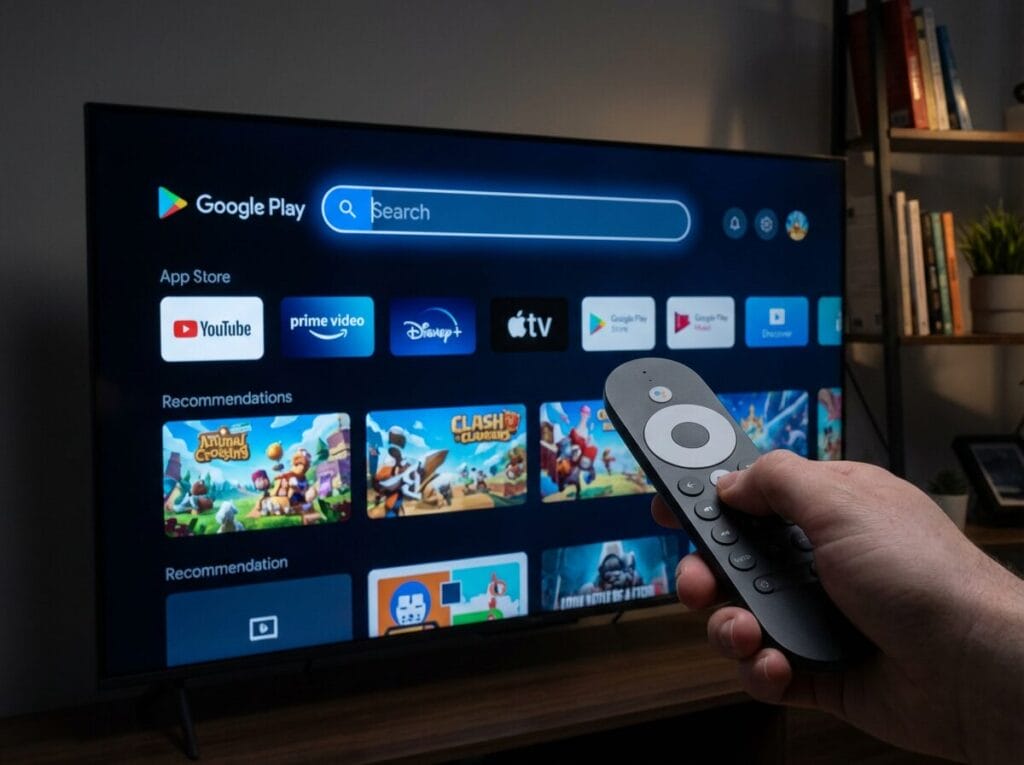
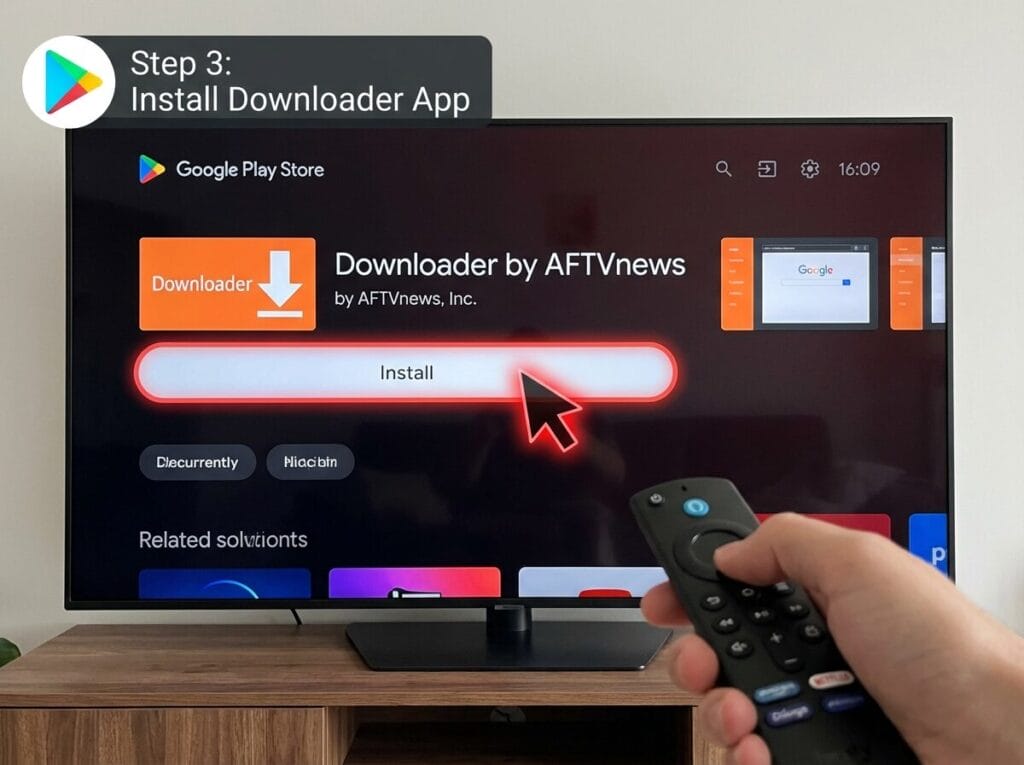
- Open Google Play, search for Downloader (by AFTVnews) and install it.
- Go to Settings > System > About. Scroll to Android TV OS build and select it 7 times until you see “You are now a developer”.
- Go back to Settings > Apps > Security & restrictions > Unknown sources and turn Downloader on.
On older Android TV boxes the setting is under Settings > Device preferences > Security & restrictions > Unknown sources.
Download and install XCIPTV
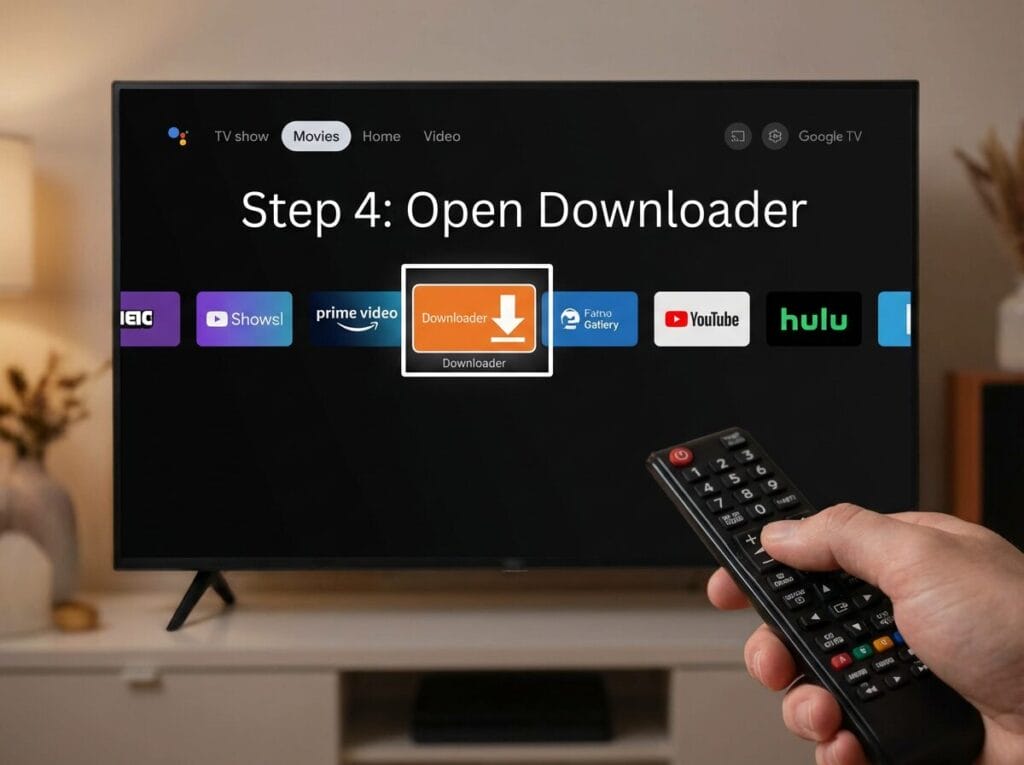
- Open Downloader and select the address box on the Home tab.
- Type
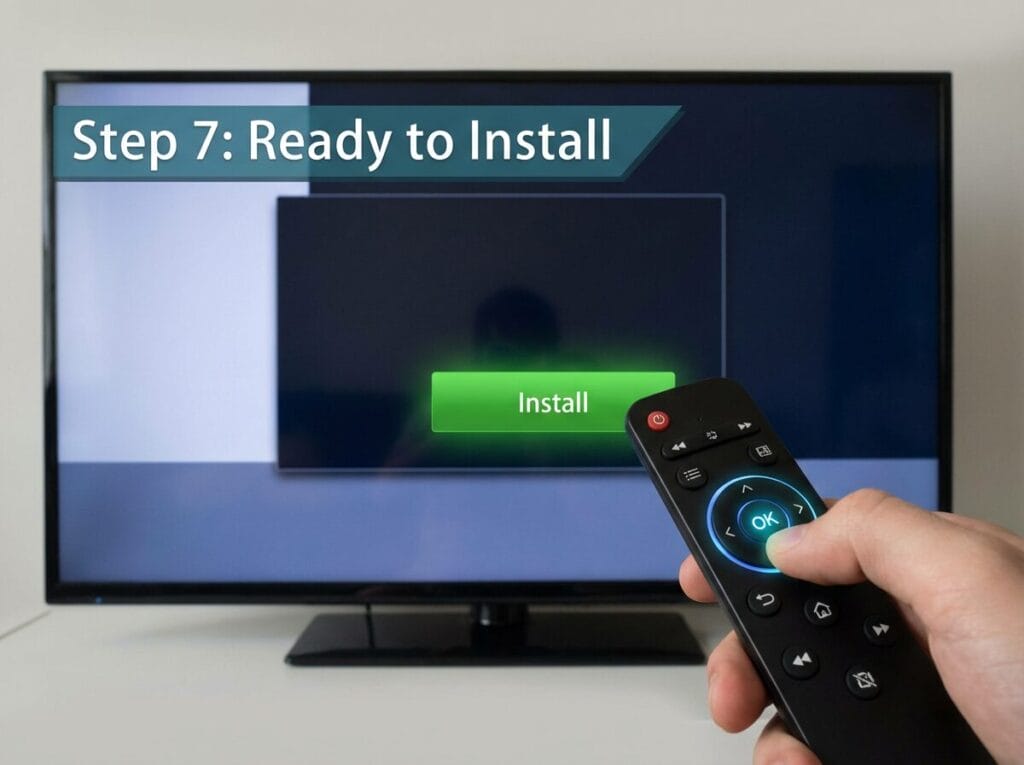
www.rentiptv.org/xciptvand select Go. - When the download finishes, select Install, then Open.
- Go back to Downloader and select Delete to remove the installer file and free up space.
Sign in
- Open XCIPTV. When asked for a panel type, choose Xtream Codes API.
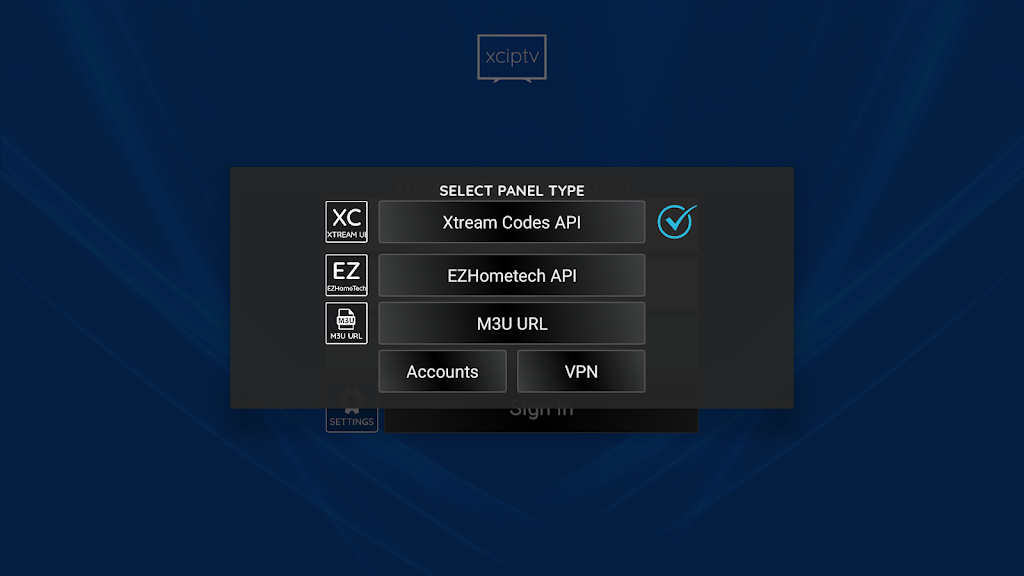
- Enter server URL
http://server1.rentiptv.com:8880, usernamedemo4821and passwordpass7395, then select Sign in. - Choose Live TV, EPG, VOD or Series. More tips in our XCIPTV guide.
Tips
- “Install blocked”: Downloader isn’t allowed to install apps yet. Check Unknown sources again.
- App not on the home screen: open Apps (or Your apps) from the Google TV home screen.
- Buffering: buffering checklist.
- Login error: Login failed or expired.
Still stuck?
Message us on WhatsApp or Telegram, or email [email protected]. Tell us your device, the app you use and what you see on the screen, and we’ll take it from there.
Views: 13
